
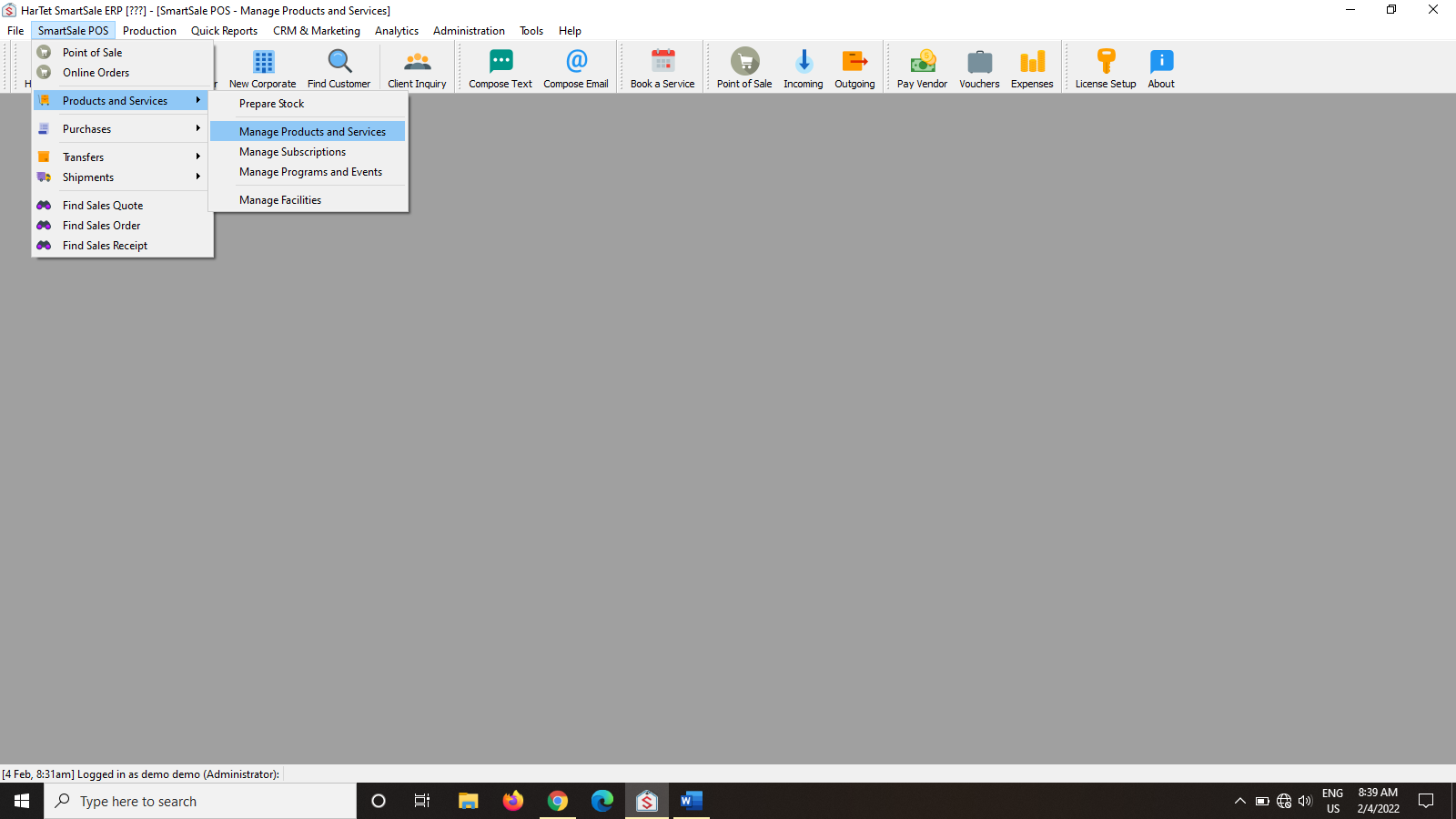
- In the SmartSale window, click on SmartSale POS and then go to Product and Services and the click on manage product and services.
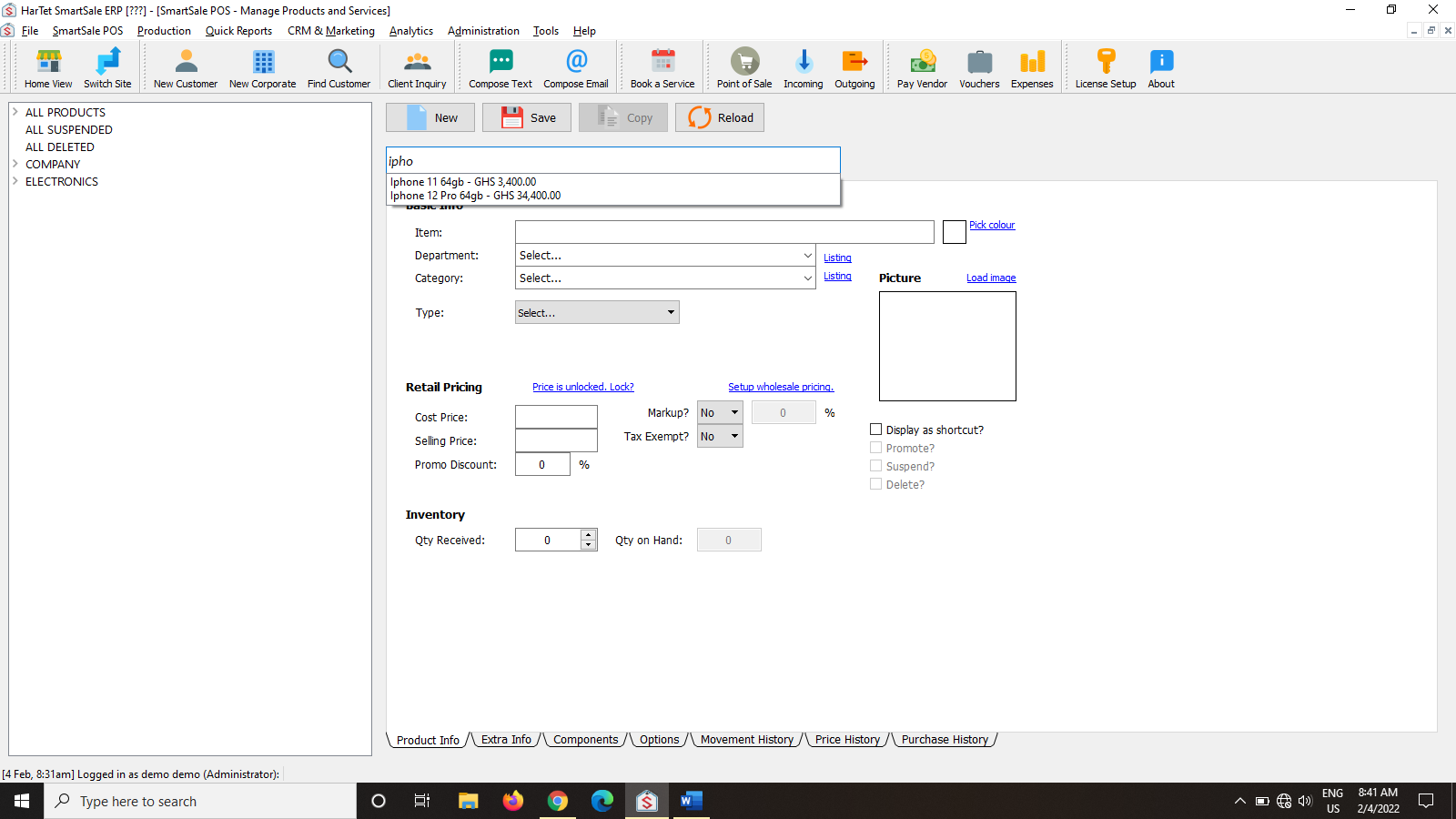
- In the search bar, search for the name of the product and then click on it.
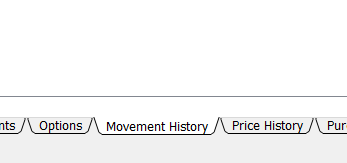
- Once the details of the product show up, go to the bottom of the window and click on movement history between Options and Price history.
- Click on the select drop down menu and select Stock Sold and adjust the date to the suitable date will then show you the movement history of the product.
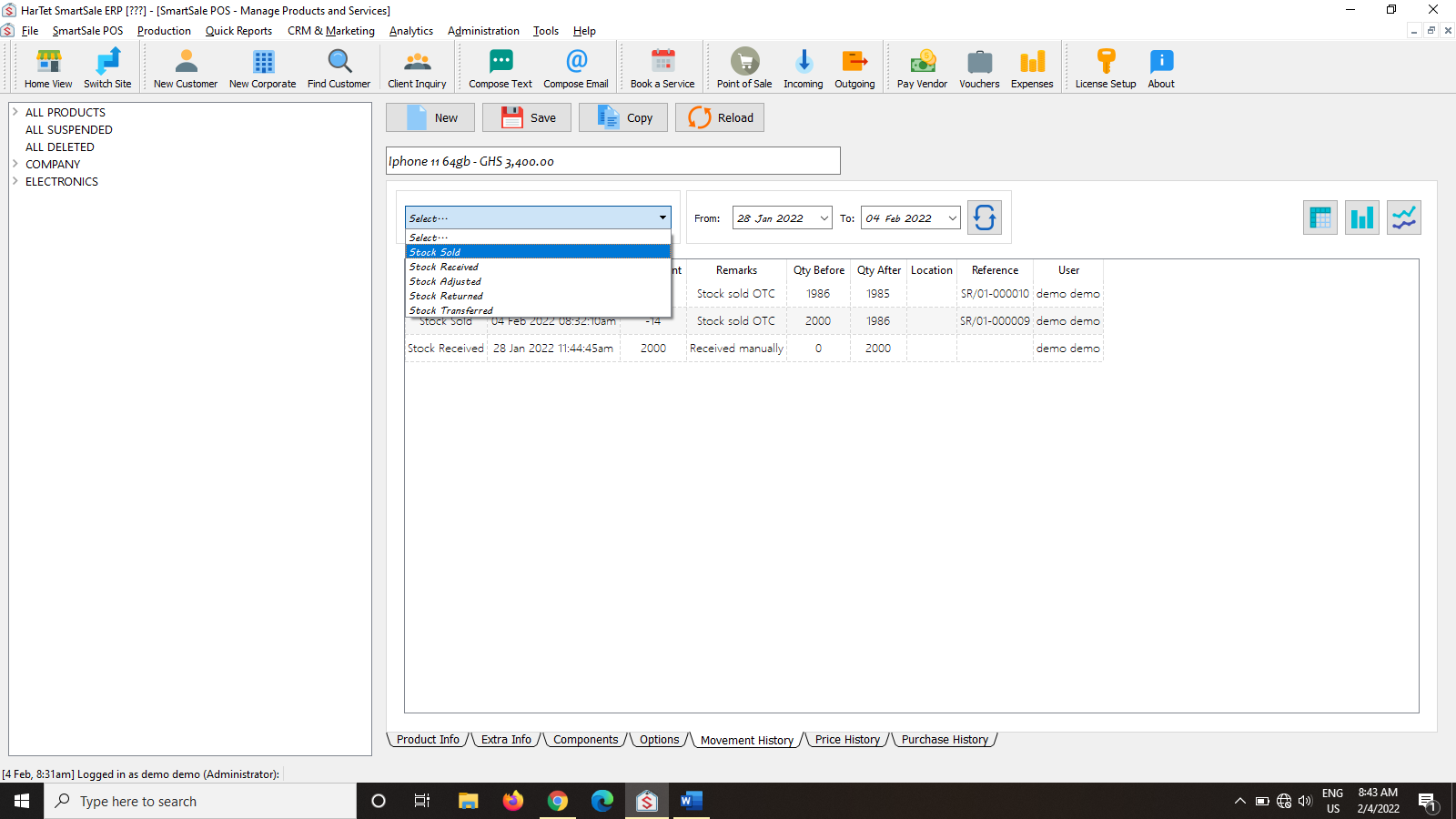
- Showing the movement history of the product selected.
