- Click on SmartSale POS, move the mouse to Products and Services and then click on Manage Product and Services.
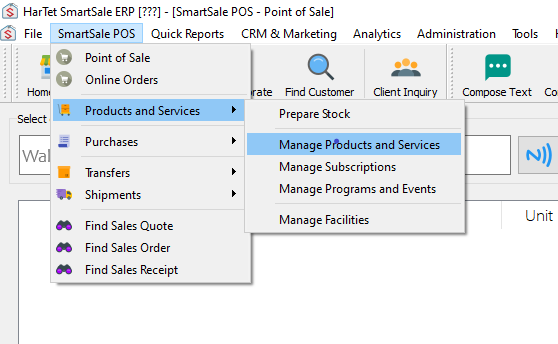
- Enter the basic info of the product and then under TYPE, select SERIALIZED STOCK.

- Enter the cost price and the selling price of the product.

- Click on load serials, to upload a CSV file containing the serial numbers of the product. N.B. The number of serial numbers will be recorded as the quantity of the product.

5. After uploading it should look like this.

6. Click on Save