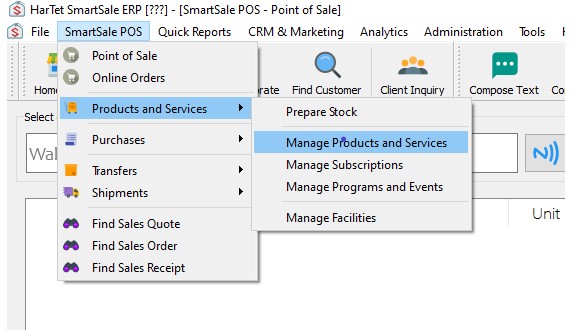
- Click on SmartSale POS, move the mouse to Products and Services and then click on Manage Product and Services.
2. Click on All Products to show the products in inventory or the specific category the product falls under 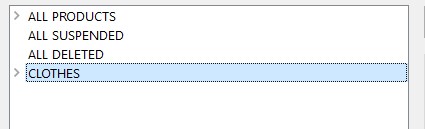
3. Select the product(s) you want to delete from inventory. N.B to select multiple products, select the first one and then hold down the control key on the keyboard whiles you select the other items 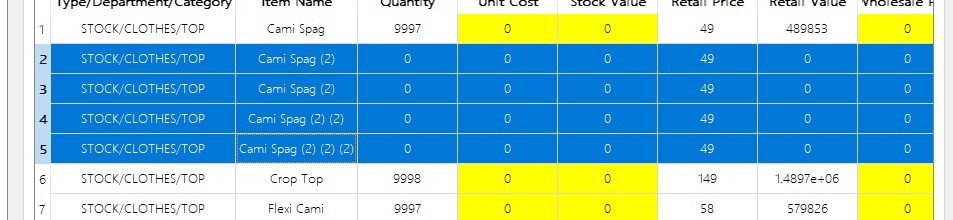
4. Right – click on the selected products, click on manage and then Delete Item

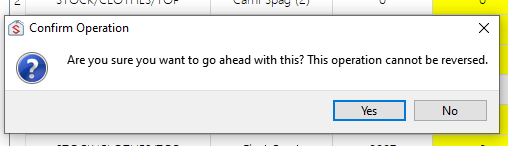
5. Click on yes to confirm deletion