
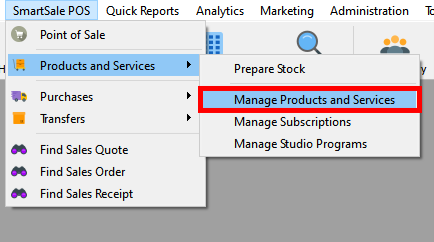
- Click “SmartSale POS”, scroll down to “Products and Services” and click “Manage Products and services” as shown below, to open the “Manage Products and Services” window.
- Click “New” to add a new product to inventory as shown below.

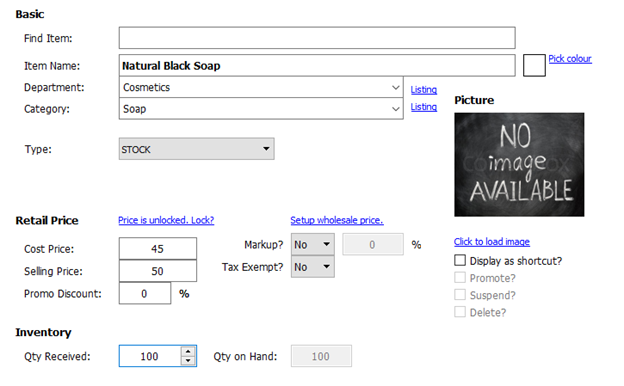
- Fill in all the details of the product such as the “Item name”, “Department”, “Category”, “Product type”, “Cost price”, “Selling price”, “Quantity Received” etc, as shown below. Click “Click to load image”, to add the product image from your computer
- Click “extra info” from the lower menu bar as shown below, to add other product information such as barcodes and expiry dates.

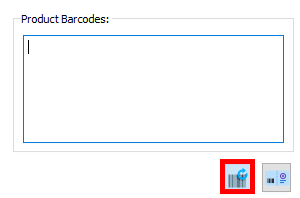
- Click the “Generate barcode” button to automatically generate a barcode or type it in yourself as shown below.
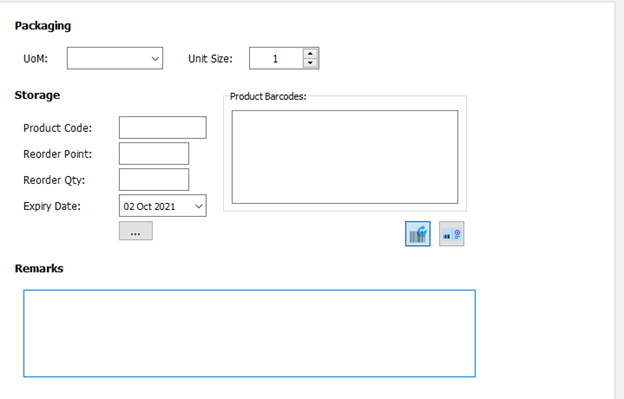
- Fill in the expiry date, reorder quantity, reorder point and product code as shown below. They are however optional fields and can be filled whenever you deem necessary.
- Click “Save” to add the product to inventory as shown below.
