
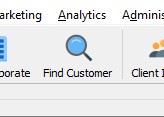
- Click on the Find Customer icon
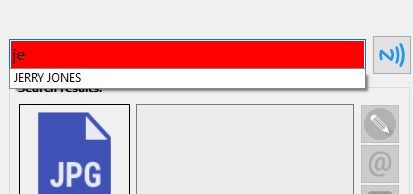
- Enter the customer’s name and click on the name in the search box.
- Click on the Next icon twice
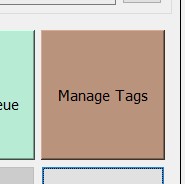
- Click on Manage Tags
- Place a new card on the card reader and click on Read
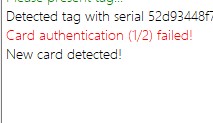
- The information given should say “New card detected”
- Click on Enroll to upload the customer profile to the card.
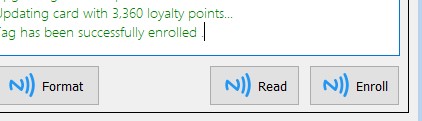
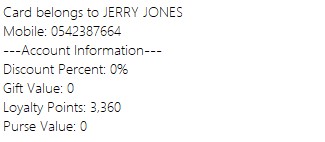
- This card has been updated with the customer’s profile
How to Upload Customer Profile to a Smart Card
Updated on August 22, 2022
Need Support?CONTACT SUPPORT